🚀 Lesson 1 of 40 Foundation Beginner

Getting Started with VS Code

Visual Studio Code is a free, open-source code editor built by Microsoft. In this first lesson you will download VS Code, install it on your machine, and open your first project.

2% complete

1What is VS Code?

VS Code is a lightweight but powerful source code editor that runs on Windows, macOS and Linux. It supports dozens of languages out of the box and can be extended with thousands of extensions from the marketplace.

  • Free and open-source (MIT licence)
  • Built on Electron / Node.js
  • First released in 2015 — now used by 70M+ developers
  • Cross-platform: Windows, macOS, Linux, and even the browser via vscode.dev

2Downloading VS Code

Head to code.visualstudio.com and click the big Download button. The site automatically detects your OS. Stable builds are released monthly; Insiders builds ship daily.

Terminal — verify installation
# After install, confirm VS Code is on your PATH
code --version
# e.g.  1.90.0  abc1234  x64

3Launching and the Welcome Tab

On first launch VS Code greets you with the Welcome tab. From here you can open a folder, clone a repository, or install recommended extensions. Pin this tab so it opens every session via Help › Welcome.

Key things to do on day one: open a folder (Ctrl+K Ctrl+O), install a language extension, and try the Command Palette (Ctrl+Shift+P).

4Opening Your First Project

VS Code works best when you open an entire folder rather than individual files. Use File › Open Folder or drag a folder onto the window. The Explorer sidebar will show all files instantly.

Terminal — create and open a project
mkdir my-first-project && cd my-first-project
code .   # open current folder in VS Code

5Quiz & Summary

Before moving on, make sure you can answer these questions:

  • What keyboard shortcut opens the Command Palette?
  • How do you open a whole folder in VS Code?
  • What is the difference between Stable and Insiders builds?

In the next lesson we'll explore the full VS Code interface in detail.

All 40 Lessons
Pick any lesson to jump straight to it.
L01
Getting Started with VS Code
FoundationBeginner
L02
The VS Code Interface & Layout
FoundationBeginner
L03
Installing & Managing Extensions
ExtensionsBeginner
L04
Keyboard Shortcuts & Command Palette
ProductivityBeginner
L05
Settings, Themes & Customization
CustomizationBeginner
L06
IntelliSense & Code Completion
Editor FeaturesBeginner
L07
Integrated Terminal Mastery
ProductivityBeginner
L08
Search, Find & Replace Across Files
Editor FeaturesBeginner
L09
Git & Source Control with VS Code
Version ControlBeginner
L10
Snippets & Emmet Abbreviations
ProductivityBeginner
L11
GitHub Copilot — Getting Started
AI & CopilotIntermediate
L12
Copilot Chat & Inline Ask
AI & CopilotIntermediate
L13
JavaScript & TypeScript Development
LanguagesIntermediate
L14
Python Development in VS Code
LanguagesIntermediate
L15
Debugging Like a Pro
DebuggingIntermediate
L16
Linting, Formatting & ESLint
Code QualityIntermediate
L17
Multi-Cursor Editing & Refactoring
Editor FeaturesIntermediate
L18
Workspaces & Multi-Root Projects
WorkspaceIntermediate
L19
Tasks, Build Systems & npm Scripts
WorkflowIntermediate
L20
Testing with Jest, Vitest & Pytest
TestingIntermediate
L21
React Development Workflow
Web DevIntermediate
L22
Node.js & Express in VS Code
BackendIntermediate
L23
Docker & Dev Containers
DevOpsIntermediate
L24
Live Share — Real-Time Collaboration
CollaborationIntermediate
L25
Jupyter Notebooks in VS Code
Data ScienceIntermediate
L26
REST Client & API Testing
API DevIntermediate
L27
SSH Remote Development
Remote DevIntermediate
L28
WSL 2 Integration on Windows
Remote DevIntermediate
L29
Advanced Debugging: Breakpoints & Watch
DebuggingAdvanced
L30
Copilot Agent Mode — Agentic Workflows
AI & CopilotAdvanced
L31
Profile & Performance Optimisation
PerformanceAdvanced
L32
GitHub Actions & CI/CD Integration
DevOpsAdvanced
L33
Custom Keybindings & Key Maps
CustomizationAdvanced
L34
Settings Sync & Dotfiles Management
WorkflowAdvanced
L35
Language Server Protocol (LSP) Explained
InternalsAdvanced
L36
Rust Development in VS Code
LanguagesAdvanced
L37
Go Development in VS Code
LanguagesAdvanced
L38
GitHub Codespaces & vscode.dev
Remote DevExpert
L39
Writing Your First VS Code Extension
Extension DevExpert
L40
Pro VS Code Workflow & Mastery
MasteryExpert
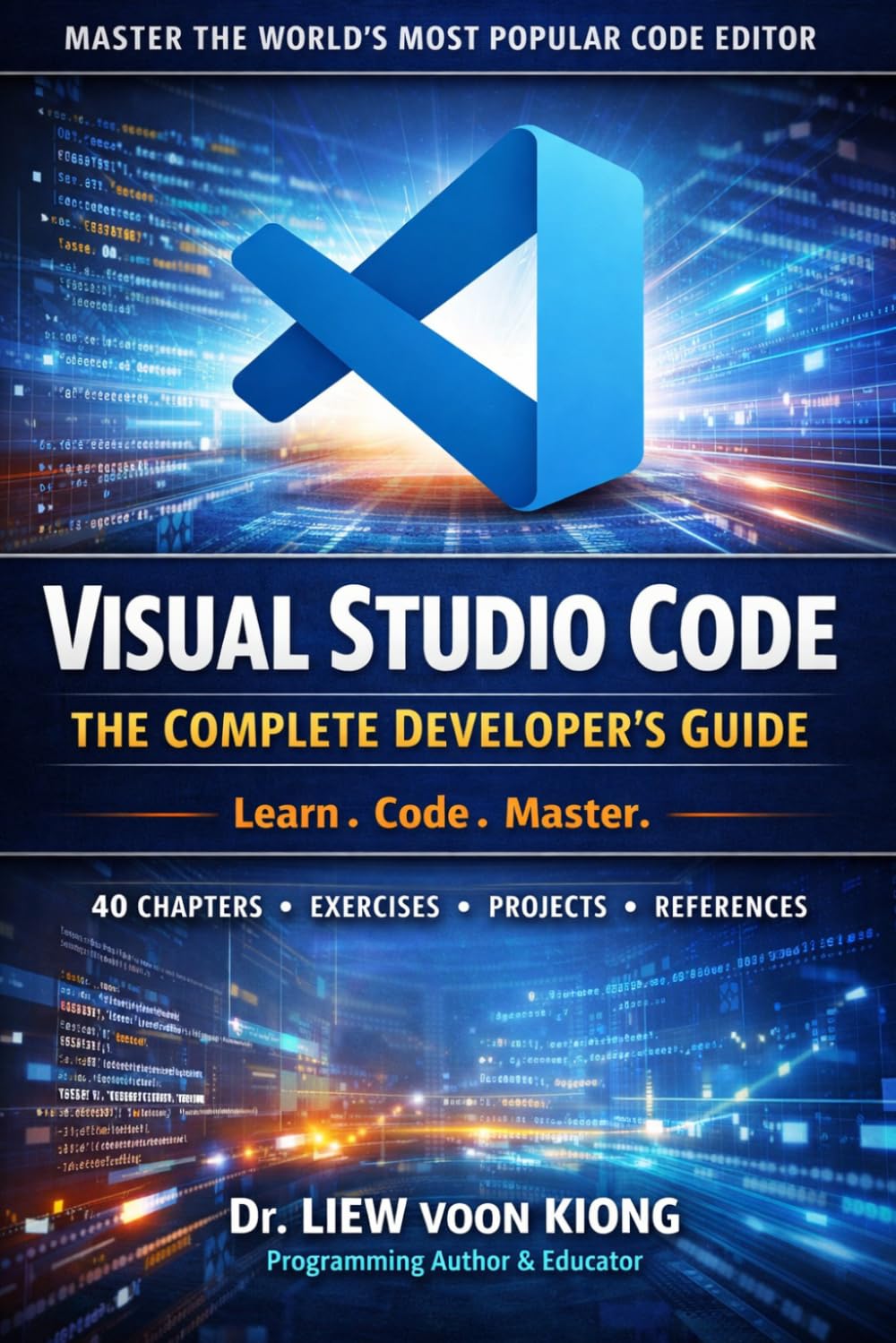
VS Studio Code: The Complete Developer's Guide book cover
Featured Book

VS Studio Code: The Complete Developer's Guide

Take your learning beyond the free lessons with this comprehensive guide to Visual Studio Code. Learn the editor from the ground up, master extensions and productivity tools, and build a professional workflow for modern development.

Beginner to Advanced Practical Examples Developer Productivity Modern VS Code Workflow