GitHub Copilot Agents in Visual Studio 2026: Debug, Test, Profile, and Modernize Your Code
Visual Studio 2026 is not only a traditional programming environment. It is becoming an AI-assisted development workspace where GitHub Copilot can help you understand code, debug errors, generate tests, profile performance, and modernize older applications.
One of the most important AI features for developers is the use of GitHub Copilot Agents. Instead of asking a general chatbot for help, you can work with specialized agents that understand a particular development task. For example, you can ask a debugging agent to inspect an error, a testing agent to suggest unit tests, or a modernization agent to help upgrade older .NET projects.
Recommended reading path
If you are new to Visual Studio 2026, start with the beginner tutorial first. Then return to this article to learn how AI agents can improve your real-world coding workflow.
Start Visual Studio 2026 TutorialWhat Are GitHub Copilot Agents?
GitHub Copilot Agents are specialized AI assistants inside Visual Studio. Each agent is designed for a specific developer workflow. Instead of giving only general coding suggestions, an agent can focus on a task such as debugging, profiling, testing, or modernization.
In Visual Studio 2026, this idea is especially useful because modern applications are no longer built by writing code only. Developers must also inspect errors, improve performance, write tests, review dependencies, and deploy applications. Copilot Agents help make these tasks easier to manage.
Why Copilot Agents Matter in Visual Studio 2026
Traditional code assistants usually help you complete a line of code or generate a function. Copilot Agents go further because they can work with the development context. They can help you reason about errors, examine performance issues, suggest tests, and guide project upgrades.
This is useful for many types of developers:
- Beginners can understand error messages and confusing code more easily.
- C# and VB.NET developers can receive help with debugging, refactoring, and unit testing.
- ASP.NET Core developers can investigate API problems, performance bottlenecks, and deployment issues.
- Educators can use agents to explain code and demonstrate professional development workflows.
- Professional teams can use custom agents to follow team-specific coding standards and workflows.
Common Copilot Agents in Visual Studio 2026
Visual Studio 2026 supports agent-style workflows for several common development tasks. The exact agent names and availability may change depending on your installed version, but the following are the most important categories to understand.
1. The Debugger Agent
The debugger agent helps you understand what went wrong while your program is running. Instead of looking at an exception message and guessing the cause, you can ask Copilot to explain the error, inspect the debugging context, and suggest possible fixes.
For example, suppose your C# application crashes because of a null value. You can run the program in debug mode, open Copilot Chat, and ask a question such as:
@debugger Why is this exception happening, and how can I fix it?The debugger agent can help you understand the current code path, variables, call stack, and likely cause of the problem. This is especially helpful for beginners who may not yet know how to read debugging windows confidently.
2. The Test Agent
Testing is an important part of professional software development. A test agent can help you create unit tests, improve test coverage, and think about edge cases.
Suppose you have a simple C# method like this:
public decimal CalculateDiscount(decimal price, decimal discountRate)
{
    return price - (price * discountRate);
}
You can ask Copilot to create test cases:
@test Generate unit tests for this method, including normal cases and edge cases.A good set of tests should check normal discounts, zero discounts, invalid values, and boundary cases. Even if Copilot generates the first draft, you should still review every test carefully and make sure the expected results match your business rules.
3. The Profiler Agent
Performance problems are not always easy to see by reading code. An application may look correct but still run slowly because it performs unnecessary loops, creates too many objects, queries a database inefficiently, or loads too much data into memory.
The profiler agent helps you investigate these issues by connecting AI guidance with Visual Studio performance tools. You can ask the agent to evaluate a section of code and identify possible bottlenecks.
@profiler Please evaluate the performance of this code and suggest improvements.For example, consider this inefficient code:
var allOrders = orders.ToList();
var largeOrders = allOrders.Where(o => o.Total > 1000).ToList();
A profiler-focused workflow may suggest avoiding unnecessary full-list materialization, filtering earlier, or using more efficient database queries if the data comes from Entity Framework or another data source.
4. The Modernize Agent
Many businesses still depend on older .NET Framework, Windows Forms, Web Forms, or legacy desktop applications. Modernizing these applications can be difficult because the project may contain old dependencies, outdated libraries, and code patterns that do not fit modern .NET.
A modernization agent can help you plan an upgrade path. It may suggest which project files, packages, APIs, and code areas need attention before moving to a newer .NET version.
Example prompt:
@modernize Review this project and suggest a plan to upgrade it to modern .NET.This type of workflow is useful for developers who want to move from older desktop or web projects toward newer .NET 10 applications, ASP.NET Core, modern Windows development, or cloud-ready architectures.
5. Custom Agents for Teams and Educators
Built-in agents are useful, but custom agents can be even more powerful for teams. A custom agent can be designed around a specific workflow, coding standard, framework, or learning goal.
Here are some examples:
- C# Tutor Agent: Explains beginner C# concepts and reviews student code.
- WinForms Expert Agent: Helps improve desktop application UI and event-handling code.
- ASP.NET Core API Agent: Reviews controllers, endpoints, dependency injection, and authentication logic.
- Code Review Agent: Checks naming, structure, security, readability, and maintainability.
- Migration Agent: Guides teams upgrading older projects to modern .NET.
Practical Example: Using Copilot Agents in a C# Project
Let us imagine you are building a simple order-processing application in C#. The application calculates discounts, processes order totals, and displays results to the user.
You might use Copilot Agents in the following workflow:
- Write the first version of your C# class or Windows Forms logic.
- Run the application and observe any errors or unexpected results.
- Ask the debugger agent to explain an exception or incorrect result.
- Ask the test agent to suggest unit tests for important methods.
- Ask the profiler agent to review slow code paths.
- Ask the modernization agent to suggest better structure if the project uses outdated patterns.
This does not replace learning programming fundamentals. Instead, it helps you learn faster because you can ask questions at the exact moment you encounter a problem.
Sample C# Code for Practice
You can use the following simple class to practice debugging, testing, and improving code with Copilot Agents:
public class OrderService
{
    public decimal CalculateFinalPrice(decimal price, decimal discountRate)
    {
        if (price < 0)
        {
            throw new ArgumentException("Price cannot be negative.");
        }

        if (discountRate < 0 || discountRate > 1)
        {
            throw new ArgumentException("Discount rate must be between 0 and 1.");
        }

        return price - (price * discountRate);
    }
}
Try asking Copilot questions such as:
- What edge cases should I test for this method?
- Can this method be written more clearly?
- What exception handling approach is suitable here?
- Can you generate unit tests using xUnit or MSTest?
- How can I use this method in a Windows Forms application?
Best Practices When Using Copilot Agents
AI assistance is powerful, but good developers must still think carefully. Use the following practices when working with Copilot Agents in Visual Studio 2026:
- Review all generated code. Do not paste AI-generated code blindly into production projects.
- Run your tests. A suggestion is not proven until your project builds and tests pass.
- Check security carefully. AI may miss authentication, authorization, validation, or data-protection requirements.
- Use clear prompts. Explain the language, framework, project type, and expected result.
- Ask follow-up questions. If the first answer is too general, ask Copilot to explain step by step.
- Keep learning fundamentals. Copilot helps you work faster, but programming knowledge helps you judge whether the suggestion is correct.
Useful Prompt Examples
Here are some prompt examples you can adapt for Visual Studio 2026:
@debugger Explain why this exception occurs and suggest a safe fix.@test Create unit tests for this class using MSTest.@profiler Identify possible performance bottlenecks in this method.@modernize Suggest how to upgrade this older .NET project to modern .NET.How Beginners Should Use Copilot Agents
Beginners should not use Copilot only to generate complete projects. A better approach is to use it as a learning companion. Ask it to explain code, compare alternatives, identify errors, and show small examples.
For example, instead of asking:
Build the whole application for me.Ask something more useful:
Explain this C# method line by line and suggest one improvement.This approach helps you become a stronger developer because you understand the reasoning behind each suggestion.
Where Copilot Agents Fit in the Visual Studio 2026 Learning Path
If you are learning Visual Studio 2026, you can follow this path:
- Learn the Visual Studio interface and project system.
- Build your first C# or Visual Basic application.
- Learn debugging with breakpoints, variables, and the call stack.
- Use Copilot Agents to understand errors and improve code.
- Learn unit testing and use AI to suggest test cases.
- Learn profiling and performance improvement.
- Modernize older projects and prepare for professional development.
Continue learning Visual Studio 2026
Explore more tutorials on C#, Python, ASP.NET Core, Android development, and AI-powered software development with Visual Studio 2026.
Visit Visual Studio Tutor Read More ArticlesRelated Tutorials and Articles
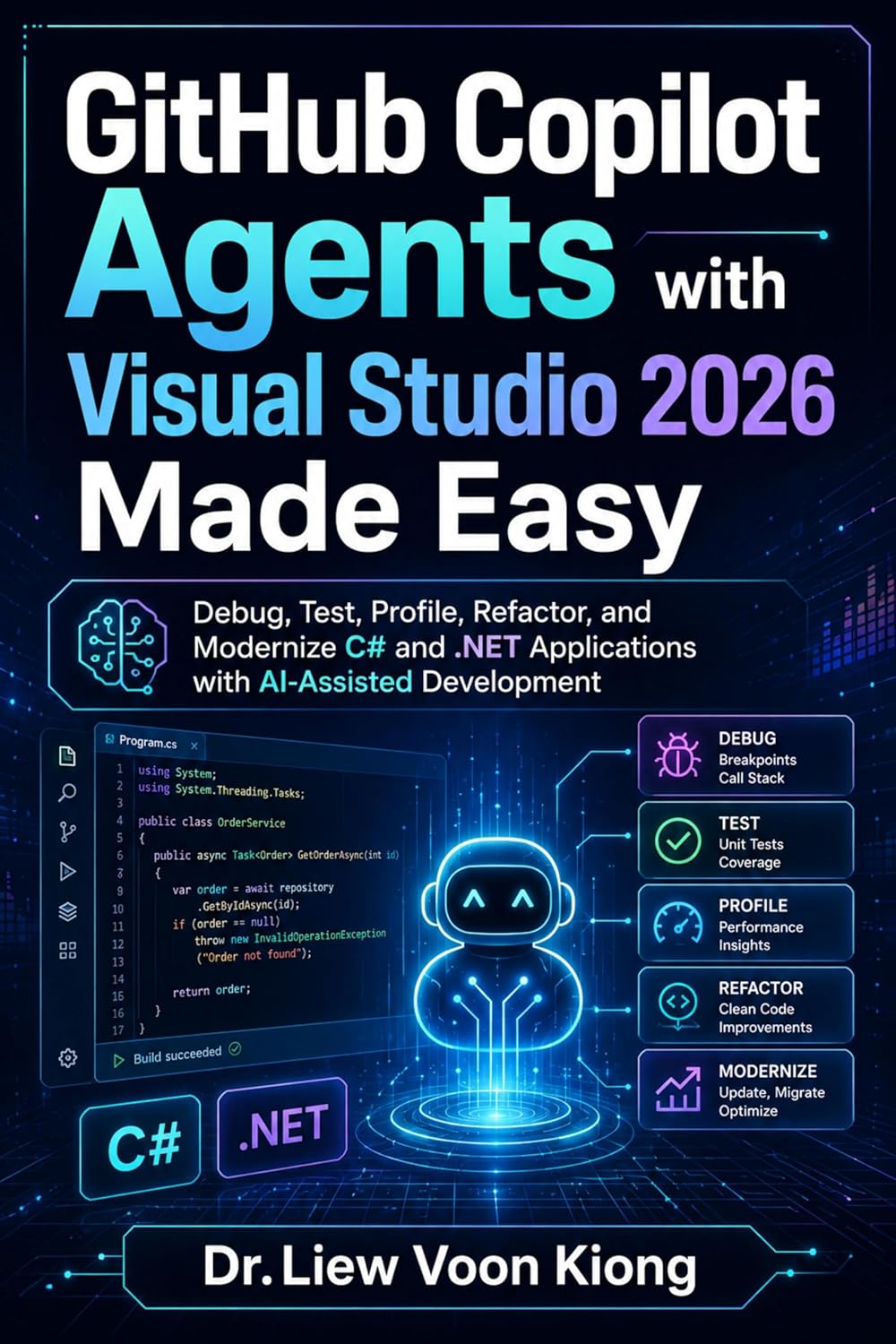
GitHub Copilot Agents with Visual Studio 2026 Made Easy
This companion book expands on the ideas in this article and shows how to use GitHub Copilot Agents to debug, test, profile, refactor, and modernize C# and .NET applications with AI-assisted development.
It is suitable for students, beginners, educators, C# developers, .NET developers, and software professionals who want to improve productivity with Visual Studio 2026 and GitHub Copilot.
Conclusion
GitHub Copilot Agents make Visual Studio 2026 more than a code editor. They turn the IDE into a smarter development environment that can help with debugging, testing, profiling, and modernization. For beginners, this means faster learning and clearer explanations. For professional developers, it means better productivity and a more structured workflow.
The best way to use Copilot Agents is not to let AI do all the thinking for you. Instead, use them to ask better questions, understand your code more deeply, and improve your applications step by step.